

Integrations
Vapi
Inspect call audio and transcripts alongside the execution that produced them.
Connect Vapi to listen to a call alongside its recorded agent activity. Radiant uses the call ID attached to an operation to retrieve its audio and transcript in the Recording tab.
Connect Vapi
Section titled “Connect Vapi”An owner or admin opens Settings → Integrations, chooses Configure on Vapi, and enters a private Vapi API key with access to the calls to inspect. Radiant encrypts the saved key and does not display it again.
After setup, Manage lets you test the connection or replace the key. A failed test keeps the saved key and shows Disconnected, so you can retry after resolving access or availability. Disconnect removes the key.
Associate a call with a span
Section titled “Associate a call with a span”In your application’s instrumentation, record the Vapi call ID as the string attribute vapi.call.id on the span representing the call:
{ "vapi.call.id": "00000000-0000-4000-8000-000000000001" }Open that span’s details and select Recording. The association is specific to the selected span: an ID on a parent span or in resource attributes does not enable playback for its children.
For the span-attribute API used by your application, follow its connection guide. The OpenTelemetry attribute example shows how to set a value on an invocation span.
If Recording is absent, inspect the selected span’s attributes. Update instrumentation to put the string attribute on the call span, then record another call.
Listen alongside the transcript
Section titled “Listen alongside the transcript”Select a transcript message to seek to its timestamp, or seek on the waveform. Follow playback keeps the current message visible as the call plays. Playback also supports speed changes and downloading; stereo recordings show separate user and assistant waveforms.
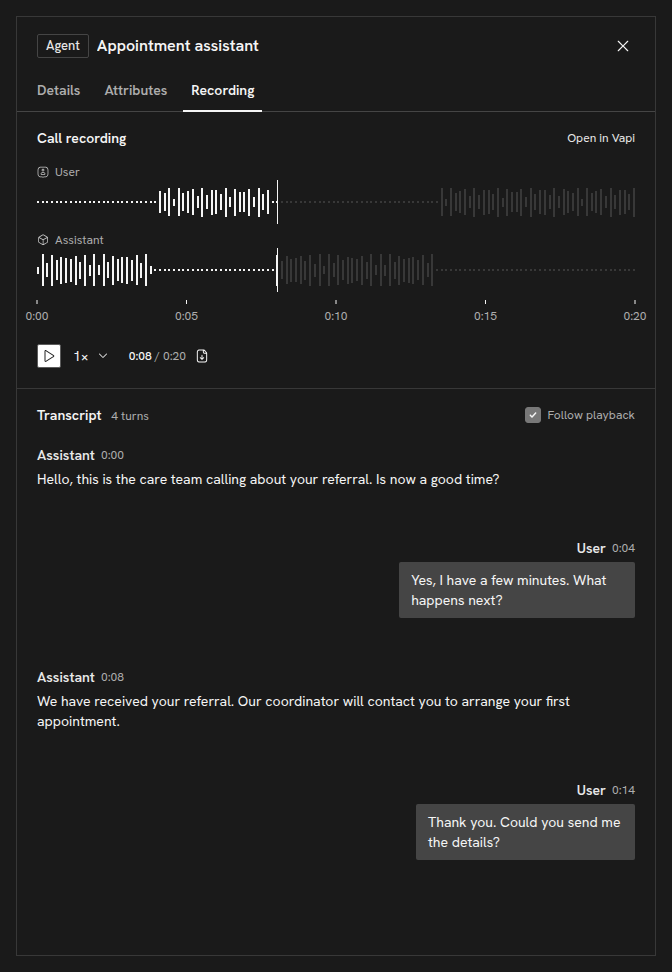
A waveform-loading error does not necessarily prevent audio playback, and you can retry the waveform separately. When audio is unavailable, read the transcript. Open in Vapi opens the original call, including recordings exceeding Radiant’s playback limit; your browser must be signed into Vapi.
Resolve a retrieval error
Section titled “Resolve a retrieval error”Confirm that the call belongs to the Vapi organization accessible to the saved key. Test the connection under Settings → Integrations → Vapi → Manage, and replace the key if its permissions changed. Use Open in Vapi to confirm the original call and recording are available.
Copyright © 2026, Radiant AI Limited.